
Same tool, different results
After the previous lessons, you know how to run Claude Code. Now we'll learn to work with it well, because the exact same tool gives completely different results to people with different habits.
Everything here rests on one principle, the one that opens Anthropic's official best practices page: Claude's context window fills up fast, and performance drops as it fills.
In plain English: Claude has a limited desk. Every message, every file it reads and every failed attempt takes up space on it. A cluttered desk means sloppy work, and almost every habit in this lesson is there to keep it clear. Want to see how full the desk is? The /context command shows you.
Plan before you do
In plan mode, Claude reads, investigates and puts together a plan, but doesn't change a single file. You get into it with Shift+Tab until the status line says plan mode on, or with the /plan command followed by the task.
Here's what a typical round looks like on a landing page:
- You: "I want to add client testimonials and an FAQ to the page. Look at the file and suggest a plan."
- Claude: shows where each part will go, which files will change and what it needs from you.
- You: "Testimonials right after the main headline, not at the end. And add a floating WhatsApp button."
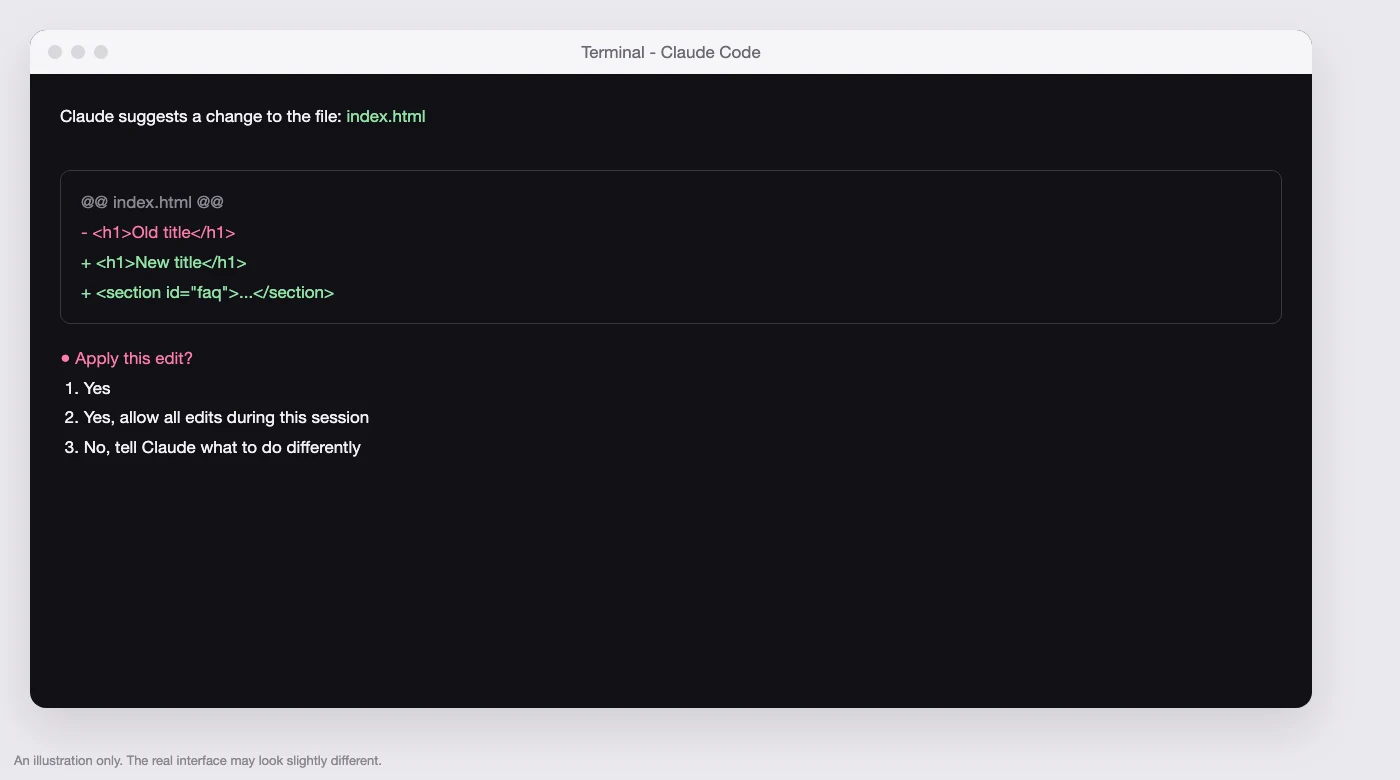
- Claude: updates the plan. When it's good, you choose: approve and continue in auto mode, approve with manual approval for every edit, or keep planning.
When do you skip it? According to the official guidance, if you can describe the change in one sentence, you don't need a plan.
And planning deserves the strong model. As of October 2026, the default in Claude Code is Opus 5.5 on all plans, so that's already sorted. If you want to save, choose opusplan in /model: the planning runs on Opus and the doing runs on Sonnet. And Fable, the strongest of them all, is charged on some plans from usage credits, and the /model picker marks that.
Permission modes: auto by default, manual when it's sensitive
A new conversation in the terminal starts in auto mode today. You switch between modes with Shift+Tab, and you see the current mode in the status line:
| Mode | What happens | When |
|---|---|---|
| Auto | A separate safety model checks every action before it runs, and stops anything that goes beyond your request | Routine work in a project you know |
| Manual | Claude asks before editing files, running commands or accessing the network | Sensitive work, an unfamiliar folder, your first few weeks |
| Accept edits | Edits files in the folder without asking, other commands still need approval | When you'd rather review the changes at the end |
| Plan | Reading and planning only | Before any serious work |
What does auto mode block by default, according to the official docs? Among other things: downloading and running code from the internet, sending sensitive information out, deploying to production, and commands that delete unsaved changes. And the same page says it plainly: auto mode cuts down on approval requests, but it doesn't guarantee safety.
So when do you switch to manual? When the work touches clients, money or a live site, when you're in a folder you don't know, and in your first few weeks, when you want to learn what Claude does at each step. Want manual to be your starting point? Ask Claude: "Set the default permission mode in my personal settings to Manual."
There's also a mode that skips all permissions. The official docs limit it to fully isolated environments, and for me the answer is simple: no.
Checkpoints: the undo button
Every request you send creates an automatic checkpoint. Something went wrong? Press Esc twice when the input box is empty, or type /rewind, and choose: restore the code and the conversation, just the conversation, just the code, or summarize from a certain point on to make room.
Two caveats from the checkpointing docs:
- Changes made through terminal commands, rather than through Claude's editing tools, aren't always captured. Edits made by subagents don't always come back either.
- Checkpoints are a quick undo inside the conversation, not an archive. For an important project, use git, a version control system. For you, that's one sentence at the end of every stage that went well: "Save the current state in git with a short description."
And stop early. Esc stops Claude mid-way, and whatever's done stays. "Undo the last change" works. And the official rule: after two failed attempts to fix the same thing, don't argue. /clear, then a new, better request with what you learned.
A clear desk, self-checks and classic mistakes
Three tools for a clear desk:
- Clear:
/clearbetween different tasks. Done with a topic? Clear the desk. - Compact:
/compactwhen the conversation is long and you want to keep going in it. Claude summarizes and makes room, and you can add a note on what to keep. - A side question:
/btwfollowed by the question. The answer doesn't go into the conversation history.
And the habit the official docs put first: give Claude a way to check itself. Building a page? "After every change, open the page and check that it loads without errors." Processing data? "Make sure the number of rows in the new file matches the original." For design, attach a screenshot of what you wanted and ask Claude to compare. And for a long task there's /goal: you set a condition, and Claude keeps working until it's met.
The five classic mistakes, from the official docs, in my own words:
- The "everything in here" conversation: ten tasks in one conversation. The fix:
/clear. - Correction on top of correction: the fix: after two tries, start clean.
- A bloated instructions file: the important rules get lost in it. More on that in the next lesson.
- Blind trust: a result that looks good and was never checked. The fix: a real check.
- Investigation with no limits: "Check everything." The fix: narrow the question, or send a subagent.
Try it now
- Open Claude Code in your landing page folder.
- Switch to plan mode with Shift+Tab, until the status line says plan mode on.
- Paste:
"I want to add a client testimonials section to the page. Don't change anything yet. Suggest a plan: where the section will go, which files will change, and how you'll check at the end that the page loads properly on mobile too."
- Correct the plan once, approve it, and let Claude do the work and check it.
- At the end, ask: "Save the current state in git with a short description."
What to take with you
A clear desk, a plan before you do, a way to check, and manual mode for anything sensitive. The habits aren't Claude Code's bureaucracy. They're its magic.